Gears

A gear is a control that holds settings instead of moving a joint. Each body part has one beside it, and there are three beside the head for the face and eyes.

This page lists every gear and every setting on it, under the name the HUD shows.

How a gear works

Click a gear to see its settings as a stack of small icons beside it. They show only while that gear is the selected control.
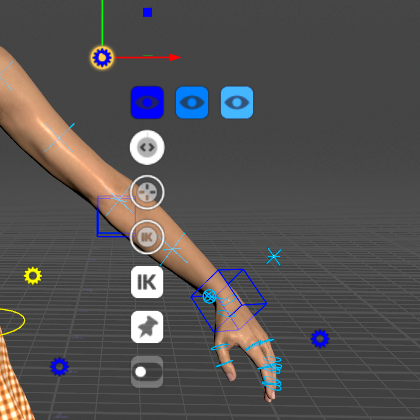
The left arm gear selected: the three LOD eye icons in a row, the round slider dials below them, the IK/FK switch, the pin and a toggle

On a body gear the three blue eye icons in a row are the LOD buttons, the round dials are sliders, the IK square is the IK/FK switch, the pushpin is pinControls and the switch icons are toggles. Hover an icon to see its name.

Press G to see them all at once: the HUD's Controls tab lists every setting of the selected gear with its value. It shows each name spaced out and capitalised, so IkStretch reads Ik Stretch, AutoClav Auto Clav and ikfk_show_all Ikfk show all. The tables below use the names.
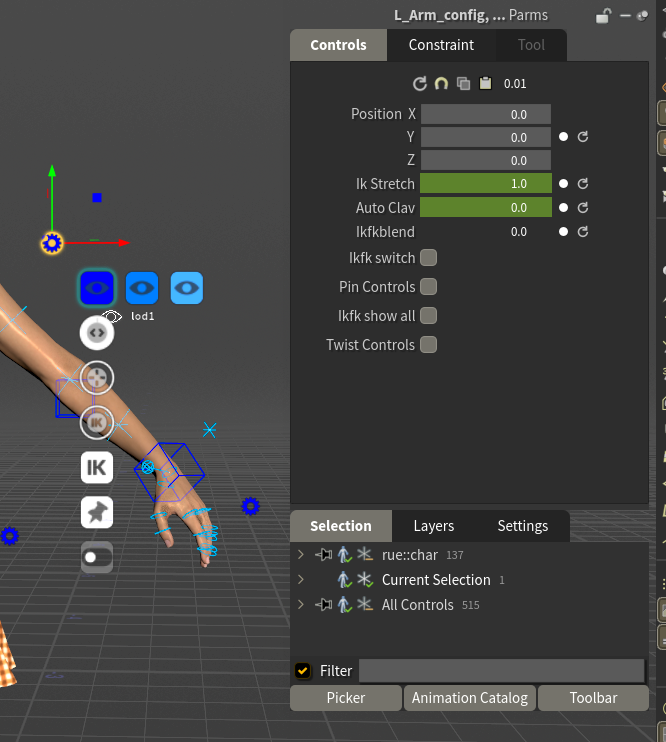
The arm gear selected, with the HUD's Controls tab listing its settings

How to use each kind:

  • Toggle: click to turn it on or off.
  • Slider: click and drag to change the value. Hold Shift to change it more slowly, Ctrl to change it in whole steps, Ctrl+Shift to change it faster. You can also type a value in the HUD.
  • Menu: click to open its list.
  • Eye icons: the LOD buttons (see below).

Keyable or setting. Some gear values are keyable channels, keyed like any other control: they can change over the shot, and they live on the animation layers. The rest are settings: one value for the whole shot, never keyed. Clear Body Keys and Clear Face Keys don't touch settings. The tables mark which is which.

Moving a gear. A gear is drawn at a fixed offset from its body part. Drag it to move it out of the way. The HUD lists its place as position.

SideFX's documentation: Gear menu.

The buttons every body gear has

  • LOD 1, LOD 2 and LOD 3 (eye icons, lod1 lod2 lod3 in the HUD) are independent show/hide toggles, one per detail level, not a level of detail you step through. On the root gear they act on the whole rig; on any other gear, only on that body part. Use them to clear controls out of the way while you work on one area. (Detail levels: see The Controls.)
  • pinControls lists that gear's controls in the Animation Editor, so their curves are in view while you key. It does not lock the pose. Pinning another gear replaces the list rather than adding to it. Each table below says what that gear's pin lists.

Root gear

Yellow, on the ground between the feet.

Name in the HUD Kind Range (default) Keyable What it does
lod1 lod2 lod3 Buttons — — Show or hide a detail level on the whole rig.
extraControls Toggle off No Shows a control on every joint beyond the standard Character Creator skeleton, such as hair bones. Only on characters that have such joints. The Character Picker gets an Extras tab for them.

Spine gear

Yellow, beside the waist. It also covers the neck and head, which have no gear of their own.

Name in the HUD Kind Range (default) Keyable What it does
stretch Slider 0 to 1 (0) Yes Lets the spine lengthen to follow the chest control. At 0 the spine keeps its length; at 1 it stretches to wherever you put the chest control.
breastControls Toggle off No Shows rings on the two breast bones.
ribcageControls Toggle off No Shows rings on the two ribcage bones (L_RibsTwist, R_RibsTwist), the ones Auto Breathe moves.
pinControls Toggle off No Lists the spine, neck, head, pelvis, jaw, breast and ribcage controls in the Animation Editor.
lod1 lod2 lod3 Buttons — — Show or hide a detail level of the spine, neck and head controls.

Arm gears

One per arm, blue for the left and red for the right, beside the upper arm.

Name in the HUD Kind Range (default) Keyable What it does
ikfk_switch IK/FK switch IK Yes Switches the arm between IK and FK. Before switching, it moves the other mode's controls onto the current pose, so the arm doesn't jump, then sets ikfkblend to 0 (IK) or 1 (FK). Shift+click switches and keys it at the current frame.
ikfkblend Slider 0 to 1 (0) Yes 0 is IK (the hand follows its IK box), 1 is FK (the arm follows its FK rings), and in between is a mix of the two poses. Dragging it doesn't line the controls up first, so the arm moves between the IK pose and the FK pose; for a clean change use the switch.
IkStretch Slider 0 to 1 (0) Yes Lets the arm lengthen when you pull the IK box beyond its reach. At 0 the arm stops at full length; at 1 it stretches all the way to the box. It does nothing until the arm is straight.
AutoClav Slider 0 to 1 (0.6) Yes How much the shoulder follows the IK hand. At 0 the clavicle stays where you put it; at 1 it follows fully.
twistControls Toggle off No Shows rings on the arm's four twist bones, two in the upper arm and two in the forearm, so you can rotate them by hand.
pinControls Toggle off No Lists the arm's IK and FK controls, and its ikfkblend and AutoClav channels, in the Animation Editor.
lod1 lod2 lod3 Buttons — — Show or hide a detail level of the arm.
ikfk_show_all Not drawn off No By default only the active mode's controls are drawn: in IK the FK rings are hidden, in FK the IK box and pole are. This setting shows both sets at once. It has no icon on the gear: turn it on in the HUD, where it reads Ikfk show all.

Hand gears

One per hand, beside it.

Name in the HUD Kind Range (default) Keyable What it does
pinControls Toggle off No Lists the fifteen finger controls in the Animation Editor.
lod1 lod2 lod3 Buttons — — Show or hide a detail level of the hand.

The fingers have no IK; you pose them with their rings, the Character Picker's Hands tab or the hand poses in the Animation Catalog.

Leg gears

One per leg, beside the thigh. Same as the arm gears, without the clavicle.

Name in the HUD Kind Range (default) Keyable What it does
ikfk_switch IK/FK switch IK Yes As on the arm: switches between IK and FK without a jump. Shift+click also keys it.
ikfkblend Slider 0 to 1 (0) Yes 0 is IK (the foot follows its IK box), 1 is FK.
IkStretch Slider 0 to 1 (0) Yes Lets the leg lengthen when you pull the foot box beyond its reach. At 0 the leg stops at full length; at 1 it stretches to the box.
twistControls Toggle off No Shows rings on the leg's four twist bones, two in the thigh and two in the calf.
pinControls Toggle off No Lists the leg's IK and FK controls and its ikfkblend channel in the Animation Editor.
lod1 lod2 lod3 Buttons — — Show or hide a detail level of the leg.
ikfk_show_all Not drawn off No Shows the IK and FK controls at the same time, as on the arm. Turn it on in the HUD.

Foot gears

One per foot, beside it. Roll and tilt drive the foot's pivots for you, so you can roll a step with one slider instead of rotating three controls.

Name in the HUD Kind Range (default) Keyable What it does
roll Slider -10 to 10 (0) Yes Positive rocks the foot back onto the heel and lifts the toes. Negative rolls it forward: first the heel lifts and the foot pivots over the ball, then further on it rises onto the tips of the toes.
tilt Slider -10 to 10 (0) Yes Positive rolls the foot onto its outer edge (the little-toe side), negative onto its inner edge (the big-toe side). The same on both feet.
toeControls Toggle off No Shows a control on each toe.
pinControls Toggle off No Lists the foot's IK box and its pivot controls in the Animation Editor.
lod1 lod2 lod3 Buttons — — Show or hide a detail level of the foot.

Eyes gear

Yellow, the lowest of the three gears beside the head. It holds the Look At settings, with 0 to 1 in place of iClone's 0 to 100. lookAt has no iClone slider: it stands in for iClone's target key and its transition (see Compared with iClone). headWeight, bodyWeight, angleLimit and the lean sliders do nothing while lookAt is 0. browFollow works whenever the eyes look up or down, Look At or not.

Name in the HUD Kind Range (default) Keyable What it does
lookAt Slider 0 to 1 (0) Yes Blends the eyes from their own crosses onto the yellow three-ring Look At target. See Auto Animation.
headWeight Slider 0 to 1 (0.6) Yes How much the head turns toward the target, out of what the chest leaves.
bodyWeight Slider 0 to 1 (0.2) Yes How much the chest turns toward the target.
angleLimit Slider 0 to 180 (70) Yes The most, in degrees, that the chest and head turn. The eyes do the rest.
leanX leanY leanZ Sliders 0 to 1 (1) Yes Scale the chest's turn on each of the character's axes: X leans forward and back, Y turns, Z tilts to the side.
browFollow Slider 0 to 1 (0) Yes Adds Character Creator's eye-to-brow link: the brows rise as the eyes look up and drop as they look down.
lod1 lod2 lod3 Buttons — — Show or hide the eye targets by detail level.

Face gear

Pink, the top gear beside the head. None of its settings is keyable.

Name in the HUD Kind Range (default) Keyable What it does
face_set Menu Curated No Which sliders the face shows. None, Curated (the essentials), or one region of the face: Brows, Lids, Eyes, Nose, Cheeks, Corners, UpperLip, LowerLip, Lips, Jaw, Visemes, Tongue, Head, Other, plus Correctives on characters that have corrective shapes. A region keeps its curated sliders on the face and gives every other shape in the region a slider of its own in the panel beside the head. The face sprite at the bottom left of the viewport opens the same list.
off_face_sliders Menu Left of Head No Where that panel sits: Below Chin, Above Head, Left of Head, Right of Head, or None, which hides it. Left and right are as you look at the face. The panel moves with the head.
boxlayout Toggle off No Shows the sliders as the flat face board and hides the ones on the face. See Face Tools.
mouthControls Toggle off No Shows the lower teeth and tongue controls.
slidersFollowClip Toggle off No Moves the sliders on the face with the clip: each shows the clip's value plus your offset. Off, they show your offset only. The face board's sliders always follow the clip. It changes where the sliders are drawn, not the face.
control_size Slider 0 to 1 (0.5) No The length of the face sliders. 1 is full length; 0 is 70 percent shorter, each about its own centre.
slider_alpha Slider 0 to 1 (0.75) No How opaque the slider lines on the face are.
pinControls Toggle off No Lists every face slider in the Animation Editor.
puppet_profile Menu Off No The Face Puppet profile. The pad's menu sprite shows the same list, and Off hides the pad. See Face Tools.
puppet_strength Slider 0 to 2 (1) No How far the Face Puppet pad pushes the face. 1 is the profile's full shapes.
puppet_solo, puppet_recording, puppet_blink Not drawn — No Set for you by the pad's Solo sprite and by a Face Puppet take while it records. Leave them alone.

Face Blendshapes gear

Pale blue, the middle gear beside the head. It has a keyable channel for every Character Creator face shape on the character, named after the shape (Brow_Raise_Inner_L, Jaw_Open, V_Wide and so on), each 0 by default.

It draws no icons. Select the gear and its channels are listed in the HUD (G) and in the Animation Editor.

Each channel adds onto its face shape. A face shape's final value is the sum of three things:

  1. its face_<shape> channel: the clip, and what Face Key Muscle, Face Puppet and Auto Blink key,
  2. its slider on the face, if it has one,
  3. its channel on this gear.

That's why a shape can move with its slider at zero, and why a clip keeps playing under a slider or a gear value: they add, they don't replace.

Catalog expressions are written on this gear's channels. Because the channels belong to this gear, select it before you apply an expression with controls selected, or before Add to New Layer. It's also why an expression adds onto the clip's face instead of replacing it. See Animating.

Use this gear when you want a face shape by number: select the gear, press G, and type the value or Alt+click to key it.